
How To Install Fusion Remote Desktop Connection on Windows
Tap a step number to check it off as you go.
Open PowerShell (Admin) by right clicking the windows start button and choosing “PowerShell (Admin)” or “Terminal (Admin)”.
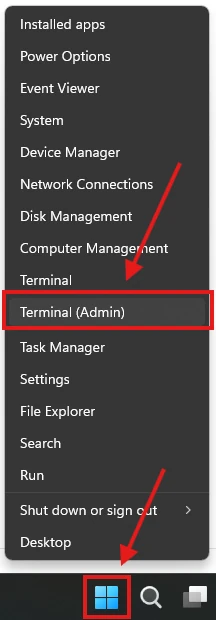
Click “Yes” to allow the program to make changes to your computer.
Copy the below text:
$ProgressPreference = 'SilentlyContinue'; Invoke-WebRequest -Uri "https://control.fusiondev.net/downloads/win-x64/ControlR.Agent.Installer.exe" -OutFile "$env:TEMP/ControlR.Agent.Installer.exe" -UseBasicParsing; Start-Process -FilePath "$env:TEMP/ControlR.Agent.Installer.exe" -ArgumentList "install -s https://control.fusiondev.net/ -t 0d9ea64d-efc0-4453-8e06-f7ba6d925b47 -ks ou8JJeDdsHizHZIqiOLIeN4zGI6sZ0uruG7xbJNPAQvcsj1JOIXu5wUh7fnzxV_xqihcjjd6r8Hs7uCWonRafw -ki 048be2ce-8ea7-41ac-b2fd-8c220808ed1e" -Verb RunAs;Paste code into the PowerShell prompt by right clicking in the PowerShell window.
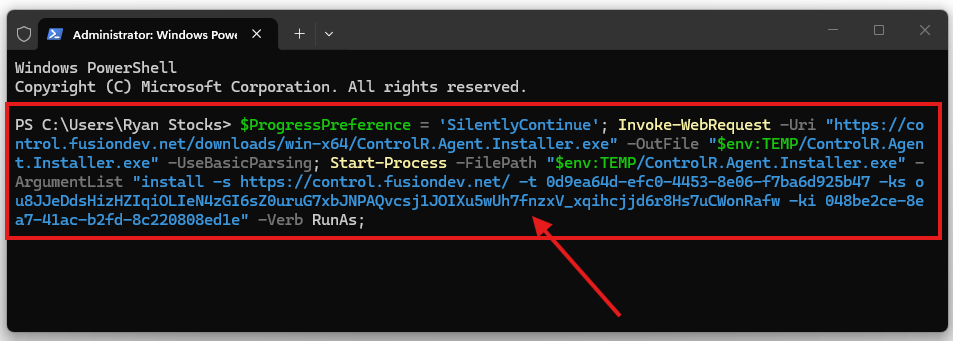
Hit Enter!
Thats it…now just wait for the program to install. Once its finished, you can close all windows.